


Shutdown Scheduler Update 1.3.2
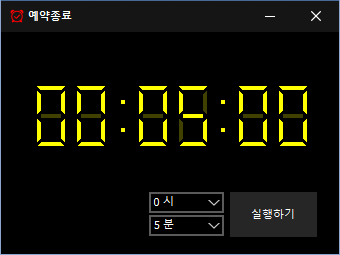
The Shutdown Scheduler (1.3.2) has been updated.
- This is a program for scheduling computer shutdowns.
- It will shutdown at the specified time.
- It includes a capture function to check the state right before shutdown.
- It can be used without installation.
Homepage
- Shutdown Scheduler: https://ktimer.kilho.net
History
- Version 1.3.2 (2026/08/21)
- Improved menu and functionality accuracy based on hibernation support
- Enhanced hibernation switch method and added notification for failures
- Fixed errors that could occur when setting auto-start in some security program environments
- Organized internal program settings for improved stability
- Enhanced update check functionality - Version 1.3.1 (2024/11/16)
- Added support for Italian, French, Russian, and Chinese - Version 1.3.0 (2024/11/03)
- Modified multilingual module
- Improved update notification module
- Added hibernation support
- Prevented duplicate executions - Version 1.2.0 (2023/08/17)
- Multilingual support
- Fixed update check module - Version 1.0.0 (2022/09/07)
- Public release of the program
Related Links
- Update Notice: https://kilho.net/archives/notice/2940
License
- The Shutdown Scheduler program is Freeware.
- You can use it freely without any space constraints in companies, homes, government offices, schools, etc.
- It can be distributed freely anywhere.
Download
Frequently Asked Questions (FAQ)
- Is the automatic shutdown program free?
Yes, this program can be used free of charge in all locations such as companies, homes, government offices, and schools. - Does it require installation?
No, it can be run immediately without installation. - Why is the screen captured before shutdown?
It captures the screen right before shutdown to help easily verify the state at the time of shutdown during the next boot. - Can I cancel a scheduled shutdown after setting it?
Yes, you can cancel or reset a scheduled shutdown.
Usage Examples
- You can schedule the shutdown of your PC automatically after estimating the time needed for downloads or backups.
- You can save power by automatically turning off your PC before leaving or going to bed.
- Refer to the captured screen of your work tasks upon shutdown the next day to efficiently continue your work.
Tips
- By setting the intended shutdown time in advance, you can reduce electricity use and extend hardware lifespan.
- For important tasks, check the automatically captured screen just before shutdown to quickly resume work during the next boot.
- If you are in an environment where you frequently step away while the PC is on, utilizing scheduled shutdowns can enhance security.

Leave a Reply